Simple S3 Setup with Python
Set up an S3 bucket and use Python with Boto3 to upload and download files.
In this tutorial, we will set up a simple S3 bucket to store and retrieve files. We will use the AWS Management Console to create the bucket and configure its settings. We will use Python to upload and download files from the S3 bucket.
I'm assuming you have an AWS account.
Step 1: Create an S3 Bucket
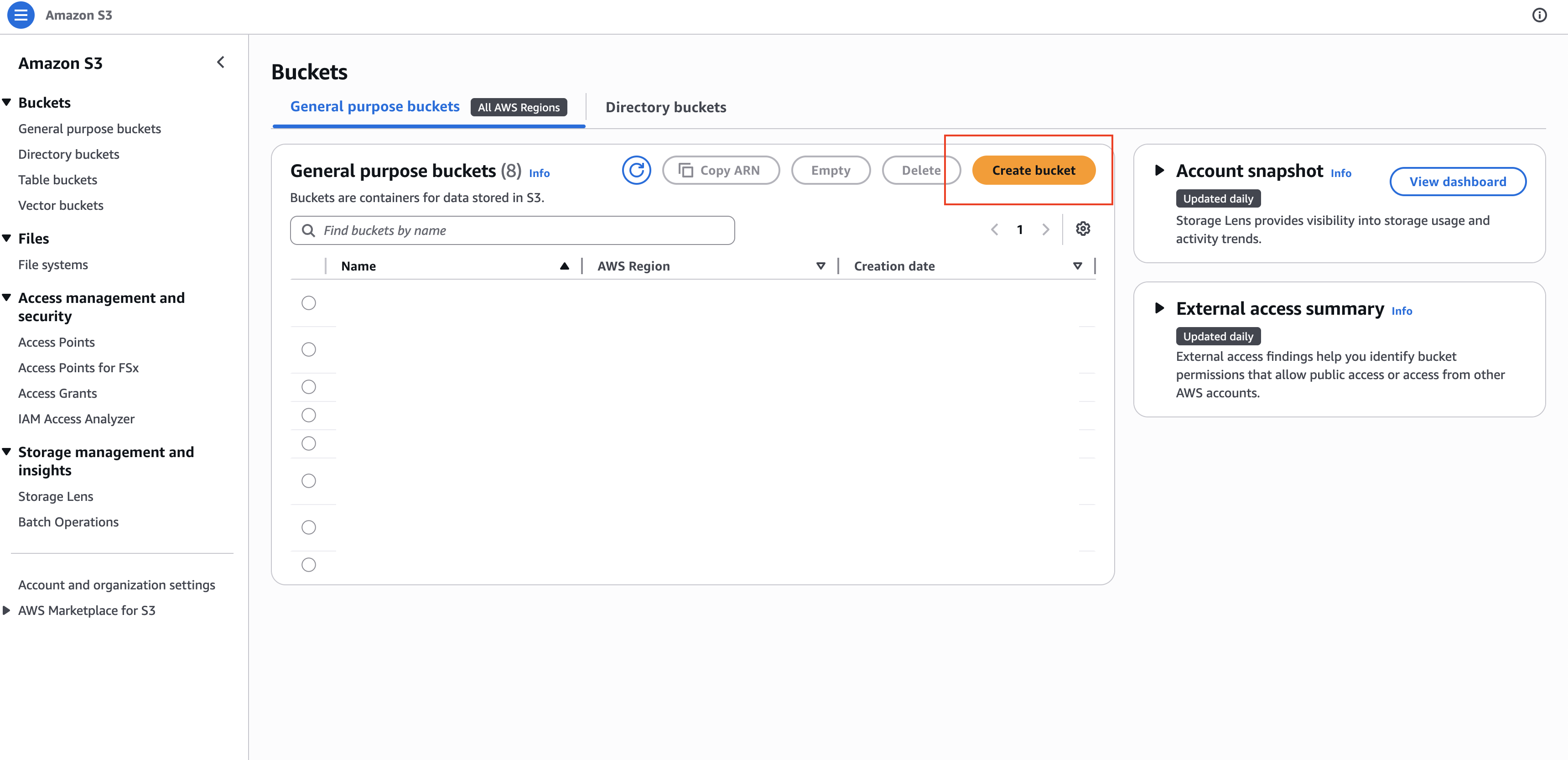
In the AWS Management Console, navigate to the S3 service and click on "Create bucket".
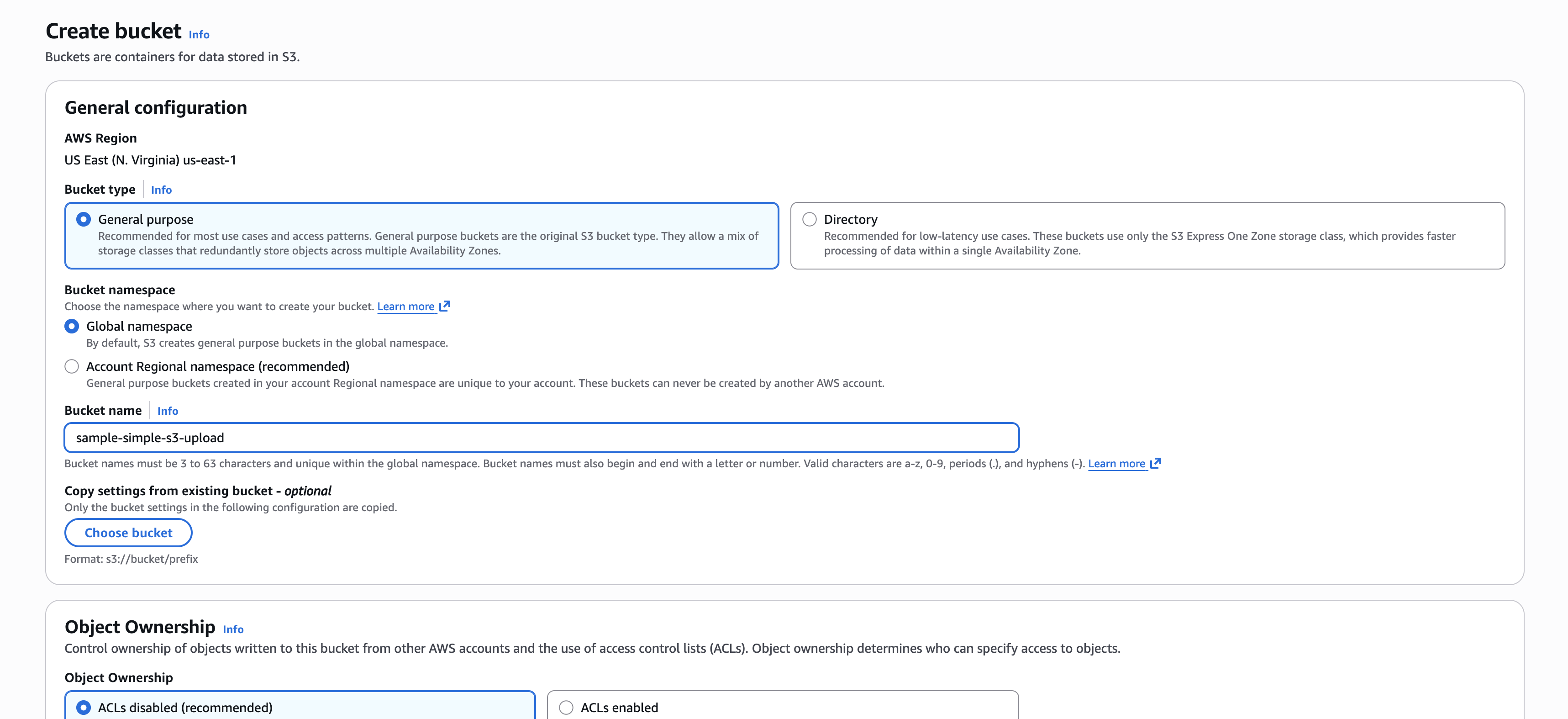
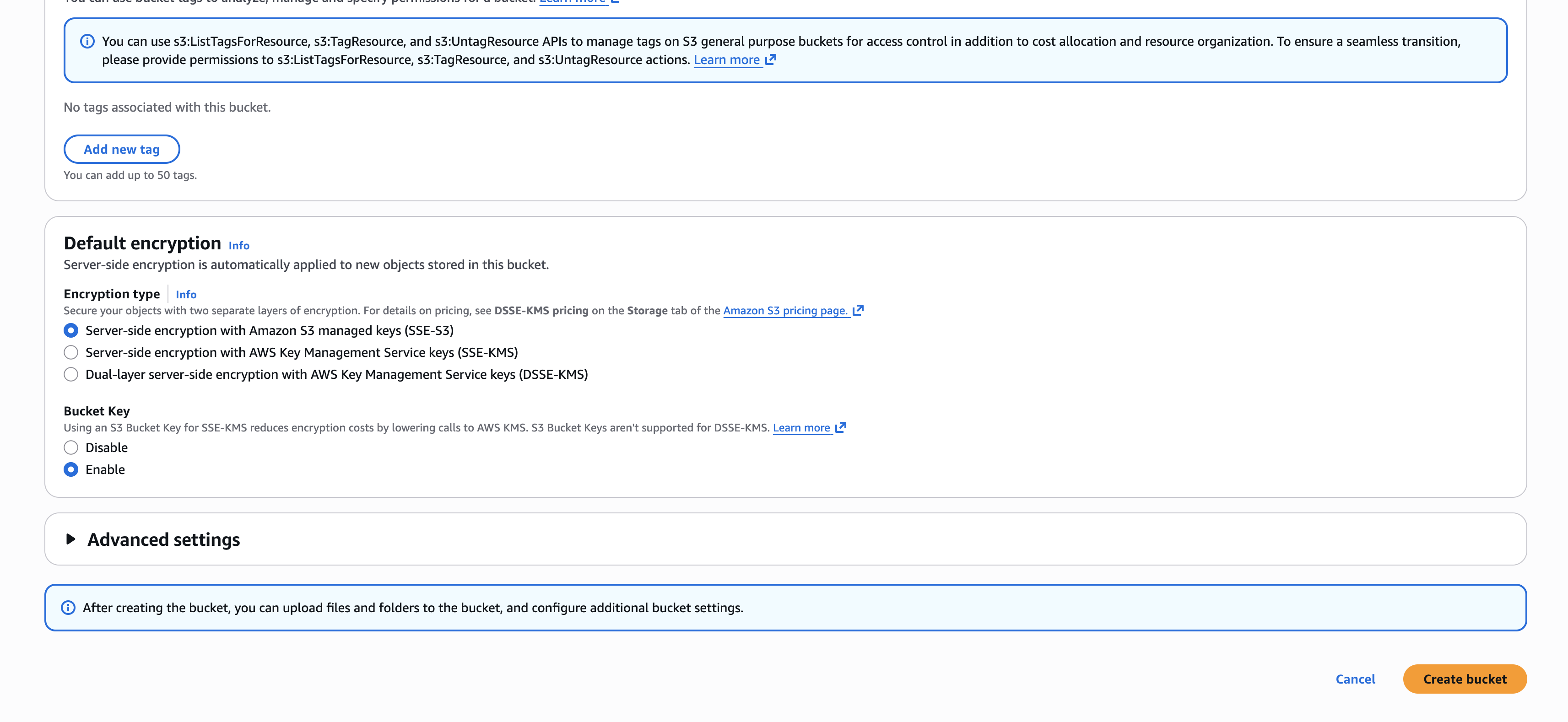
Give your bucket a unique name and select a region. You can leave the other settings as default for this tutorial.
Step 2: Create an IAM User
In a new tab, navigate to the IAM service and click on "IAM users" in the left sidebar. Click on "Add user".
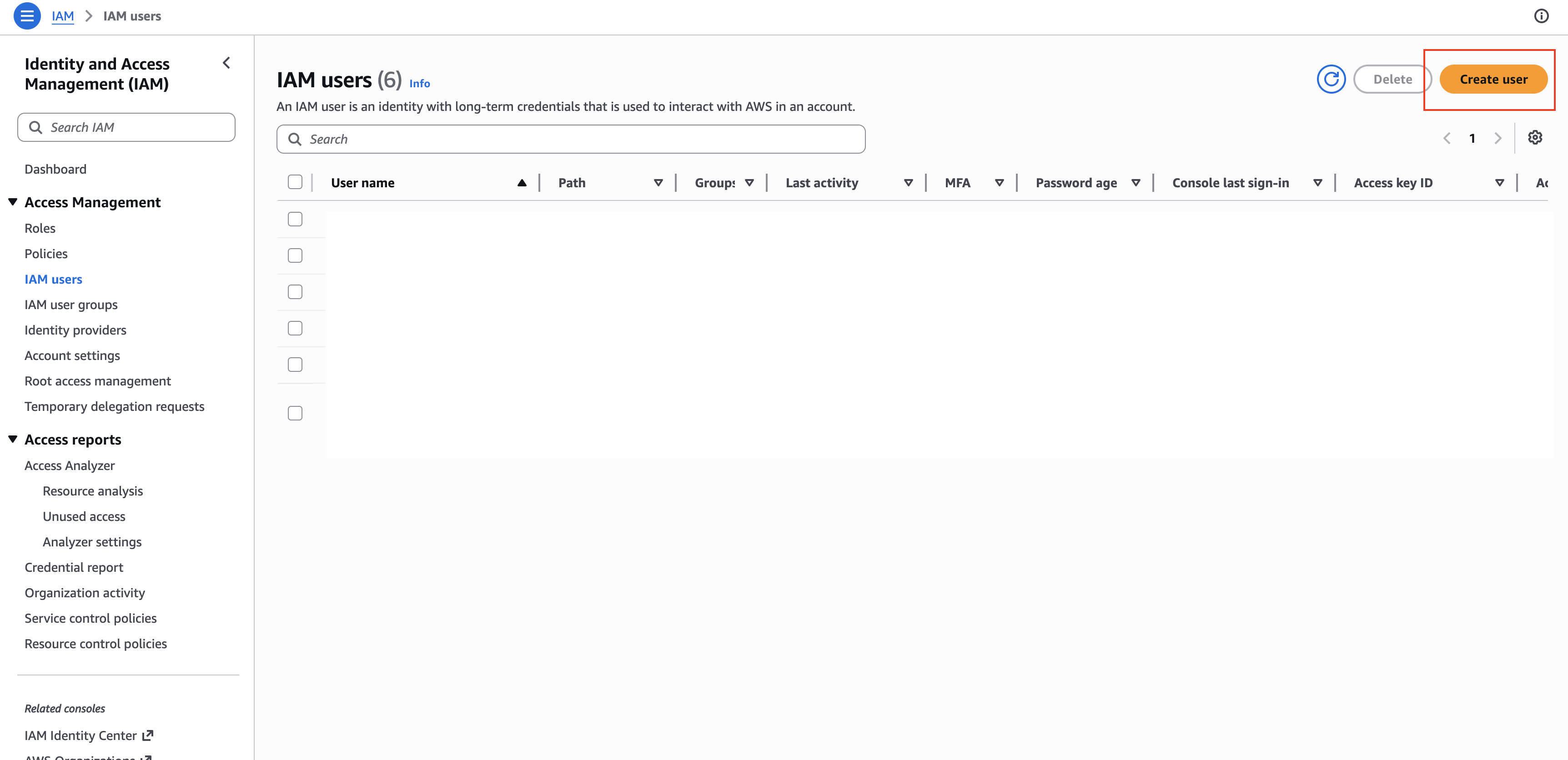
Give it a name that is unique. Don't check "Provide user access to the AWS Management Console - optional". Hit "Next".
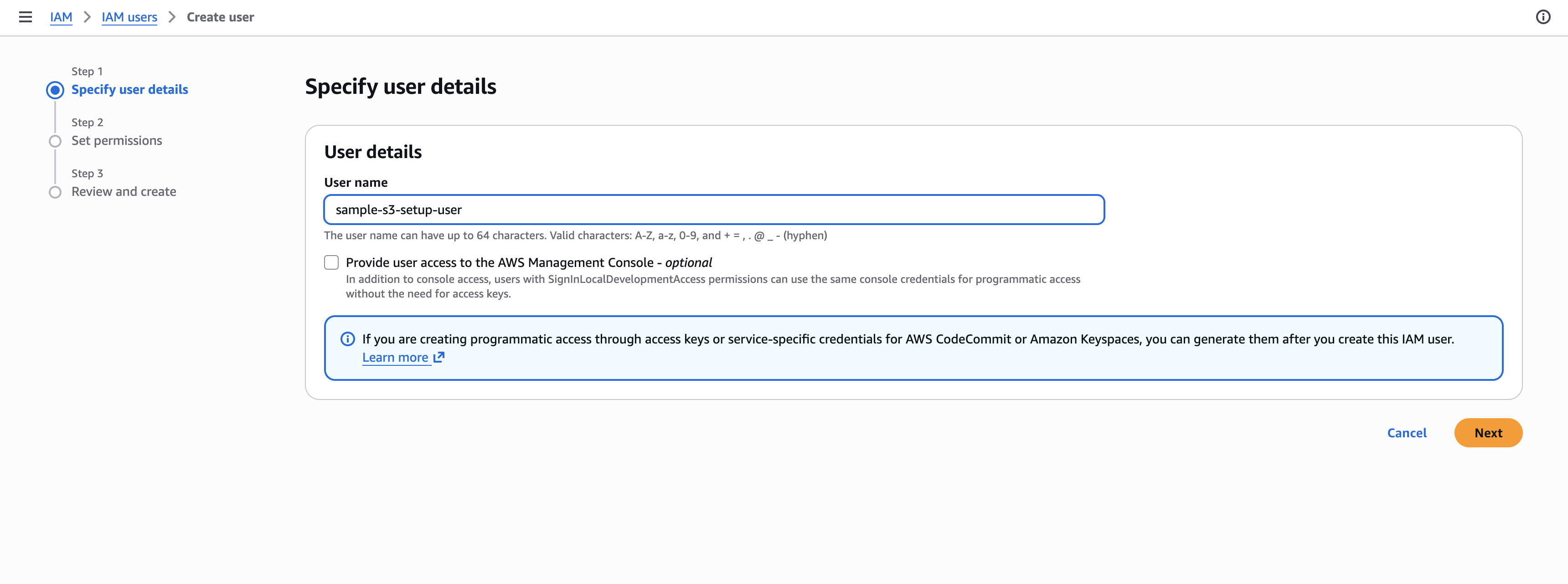
On the policies page, click on "Attach existing policies directly" and search for "AmazonS3FullAccess". Check the box next to it and hit "Next".
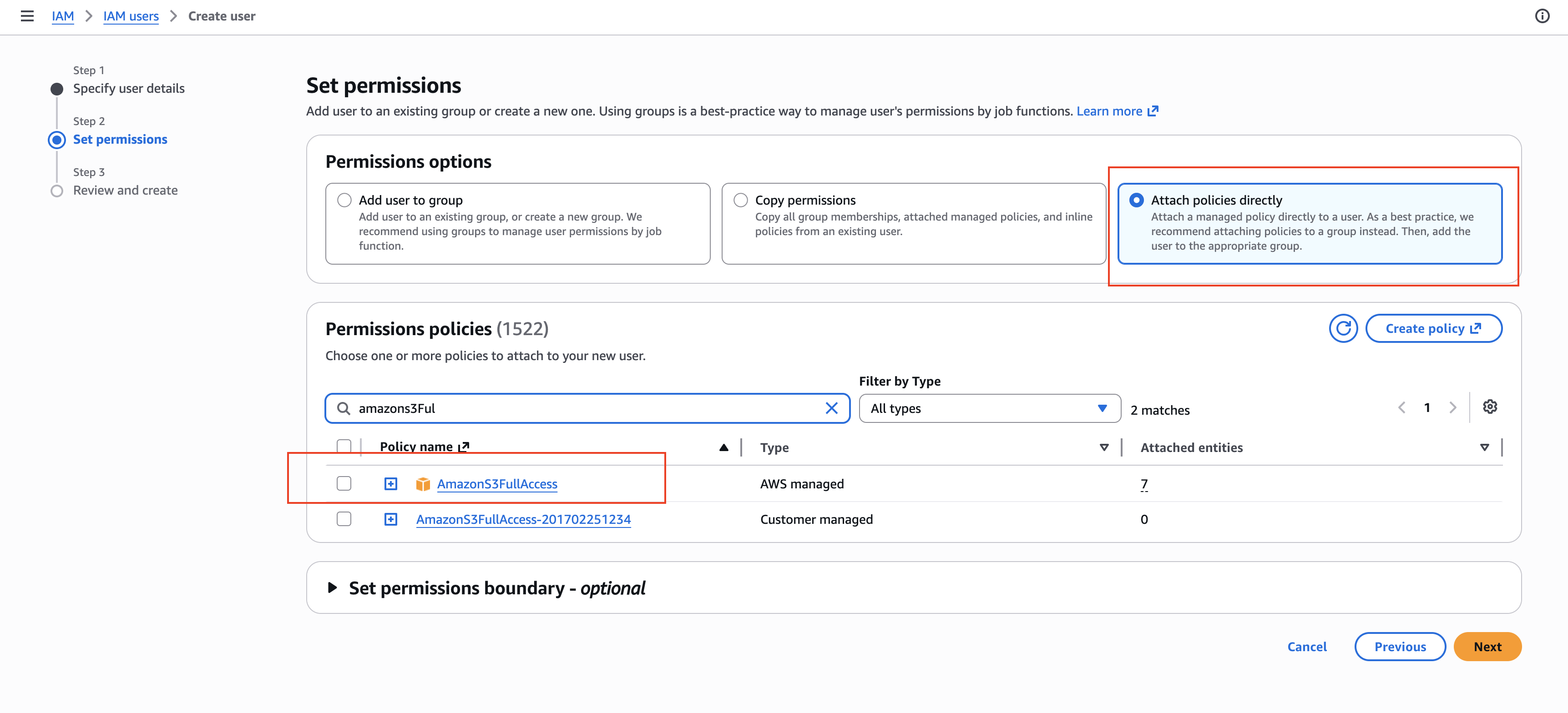
Hit "Create user" on the next page.
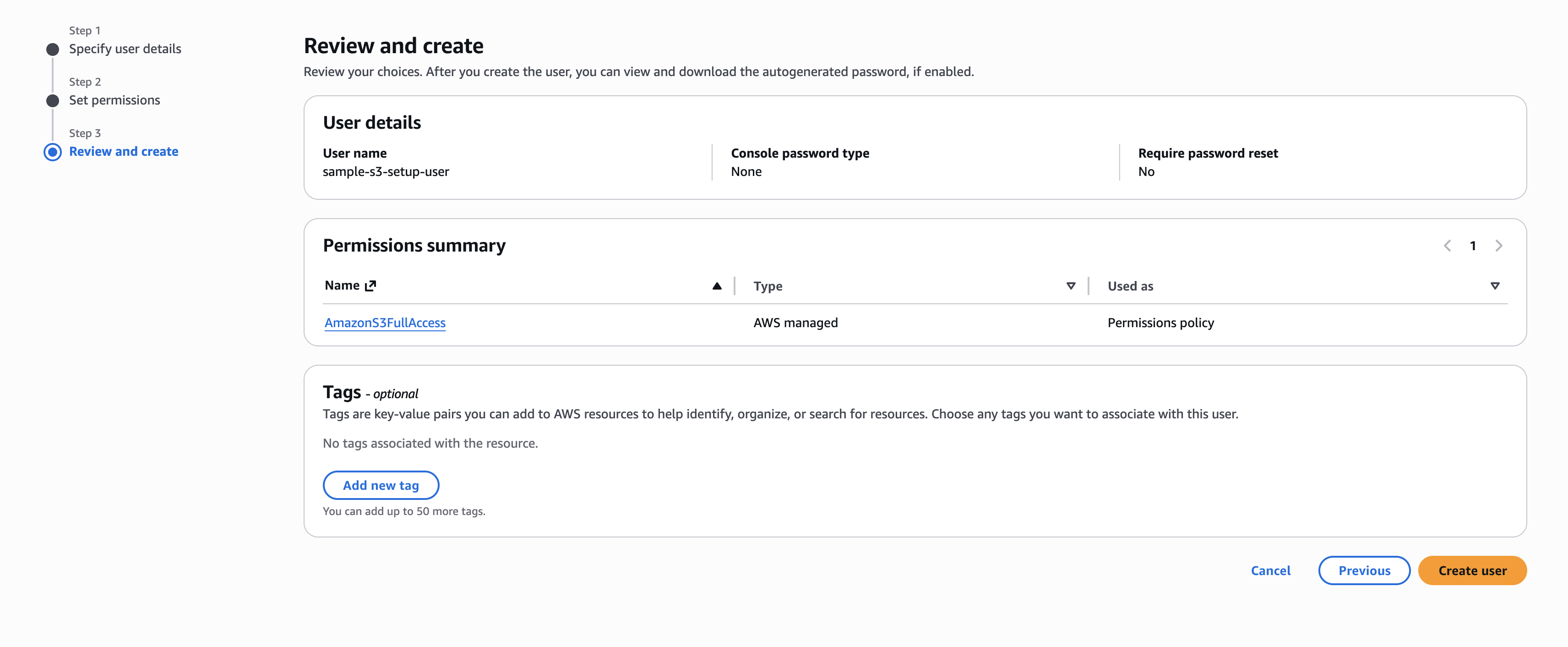
Step 3: Get Access Keys
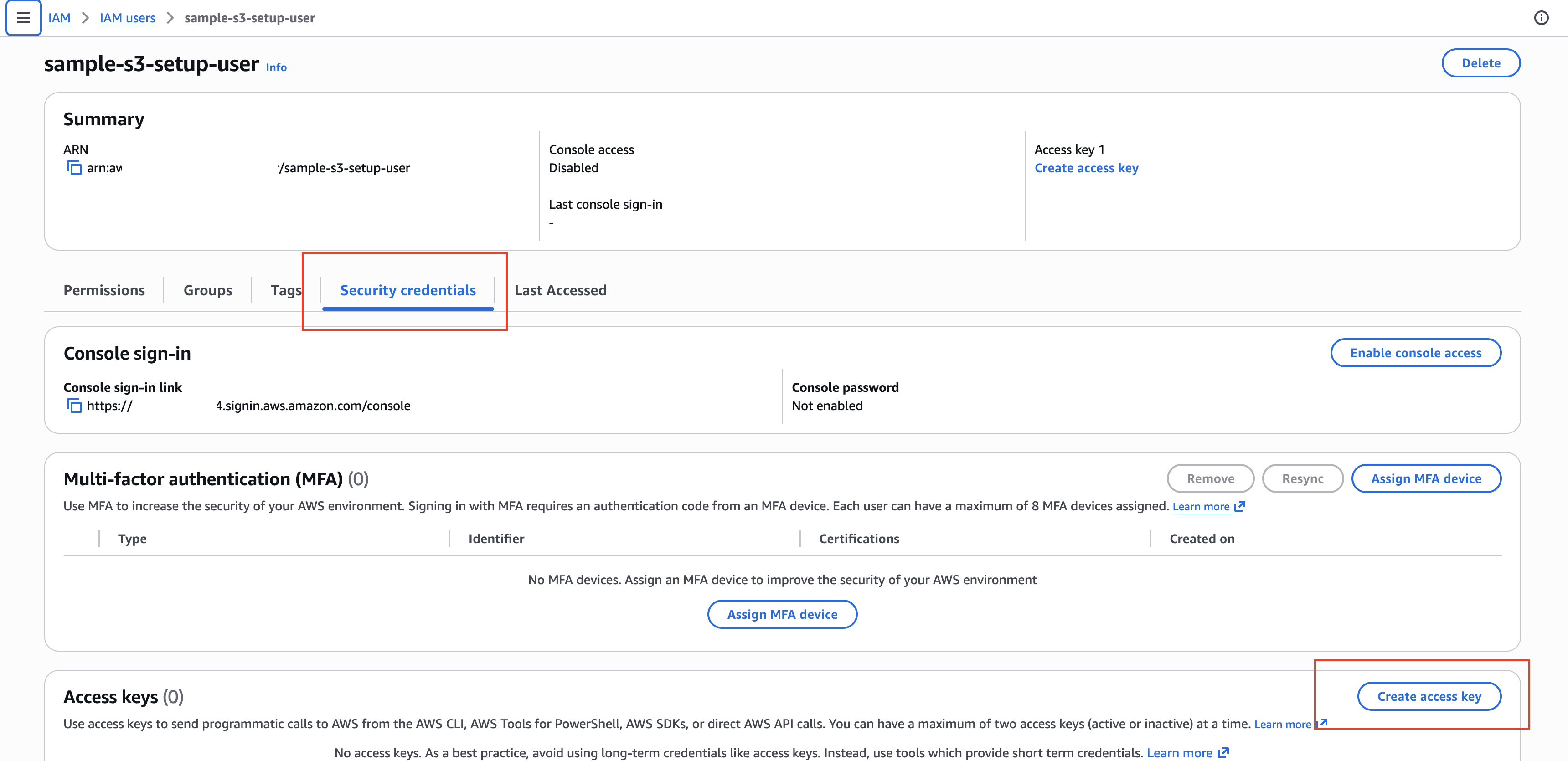
Click on the user you just created and navigate to the "Security credentials" tab. Click on "Create access key".
For "Access key best practices & alternatives ", select "Application running outside AWS". Click on "Next".
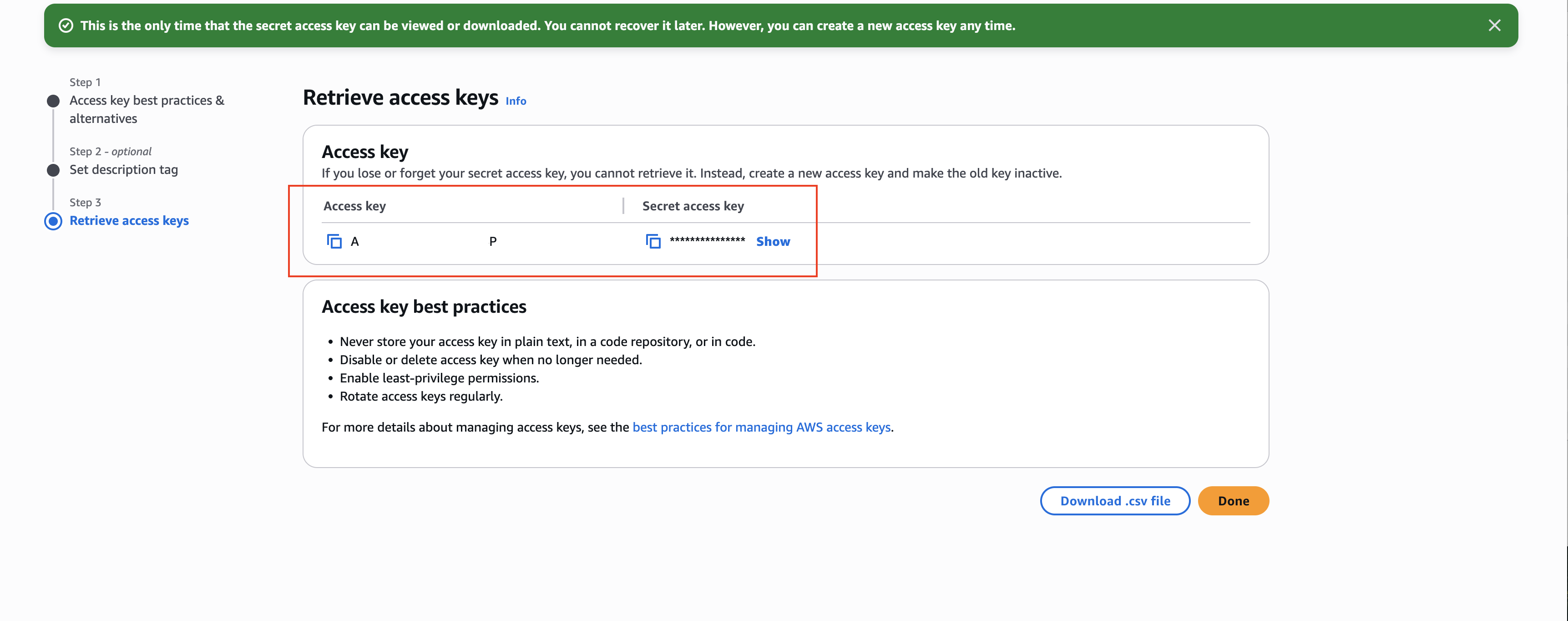
Hit Create access key on the next page. Copy the Access key ID and Secret access key to a secure location. You will need these to access your S3 bucket from Python.
Step 4: IAM User ARN
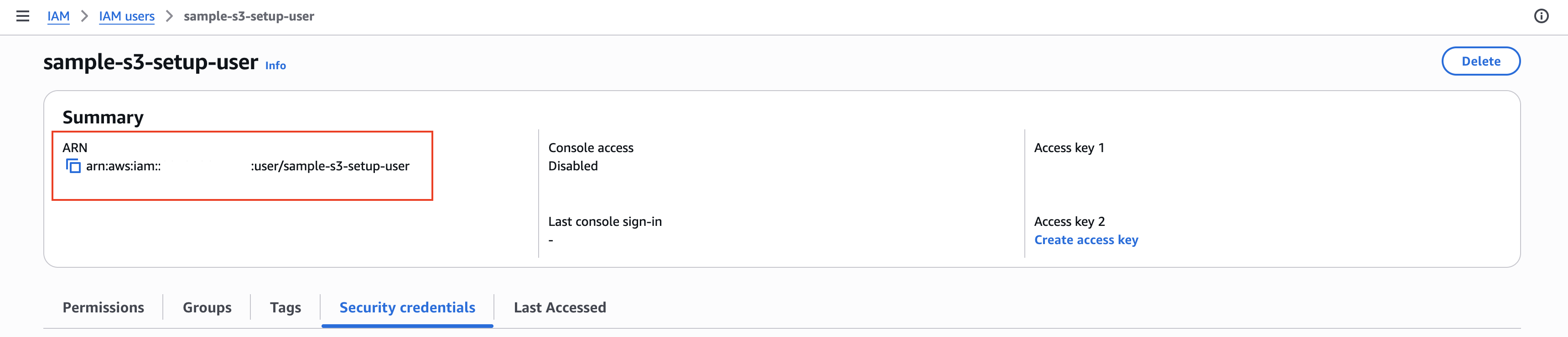
On the IAM User page, copy the "User ARN" value. You will need this to set up permissions for your S3 bucket.
Step 5: Set Bucket Permissions
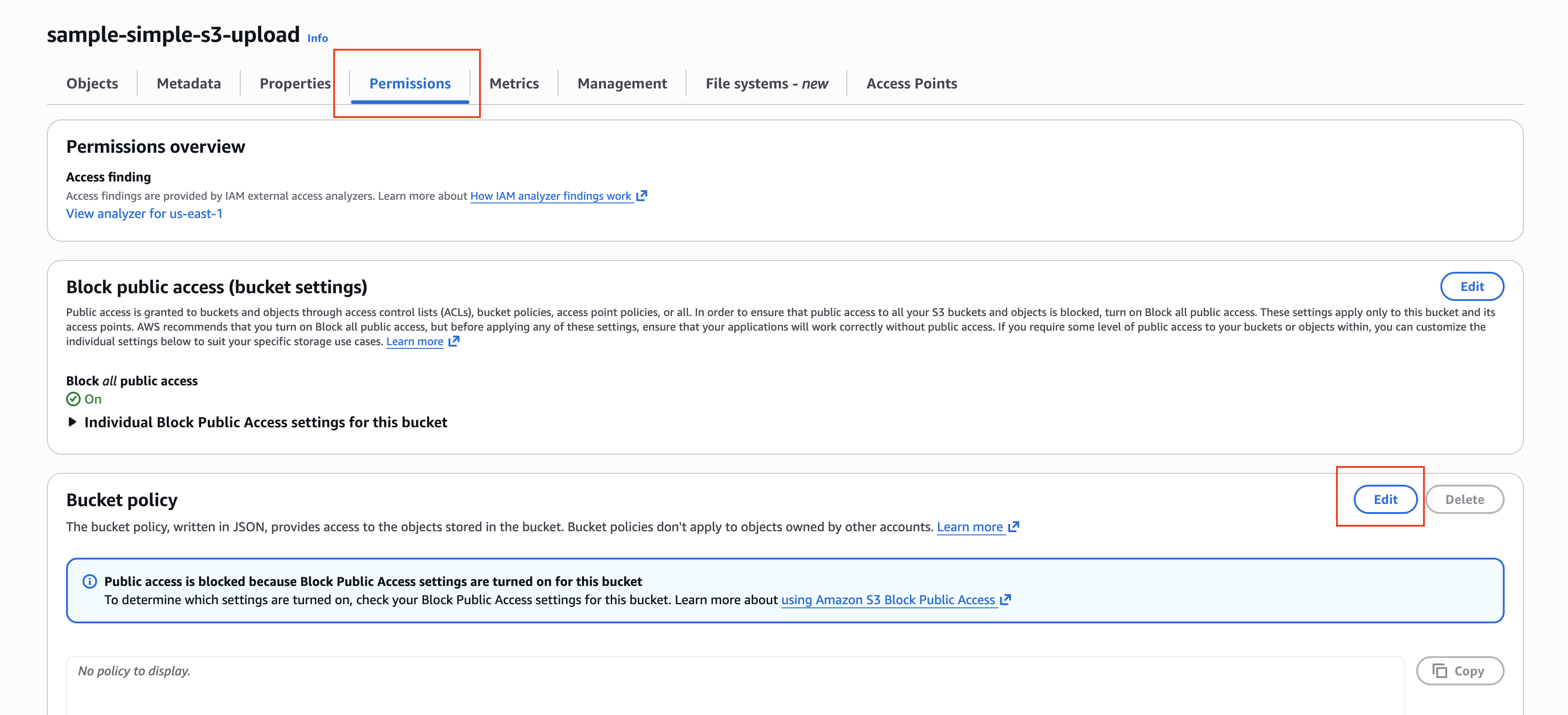
On your S3 bucket tab, navigate to the "Permissions" tab and click on "Bucket policy". Paste the following policy, replacing YOUR_BUCKET_NAME with the name of your bucket and USER_ARN with the ARN of your IAM user.
{
  "Version": "2012-10-17",
  "Statement": [
    {
      "Effect": "Allow",
      "Principal": {
        "AWS": "USER_ARN"
      },
      "Action": ["s3:GetObject", "s3:PutObject"],
      "Resource": "arn:aws:s3:::YOUR_BUCKET_NAME/*"
    }
  ]
}
Don't forget to click "Save changes" after pasting the policy.
Step 6: Install Boto3
Boto3 is the Amazon Web Services (AWS) SDK for Python. It allows Python developers to write software that makes use of services like Amazon S3 and Amazon EC2.
Open a terminal and run the following command to install Boto3:
pip install boto3
If you get not found, run python3 -m pip install boto3 instead. You will need to run python3 test.py instead of python test.py in the next step.
Step 7: Upload and Download Files
Create a file called s3_test.py and add the following code to it:
import boto3

# Replace these with your access key and secret access key
ACCESS_KEY = 'YOUR_ACCESS_KEY'
SECRET_KEY = 'YOUR_SECRET_KEY'

# Create an S3 client
s3 = boto3.client('s3', aws_access_key_id=ACCESS_KEY, aws_secret_access_key=SECRET_KEY)

# Replace 'YOUR_BUCKET_NAME' with the name of your S3 bucket
BUCKET_NAME = 'YOUR_BUCKET_NAME'

# Upload a file to S3
def upload_file(file_name, object_name=None):
    if object_name is None:
        object_name = file_name
    s3.upload_file(file_name, BUCKET_NAME, object_name)

# Download a file from S3
def download_file(object_name, file_name=None):
    if file_name is None:
        file_name = object_name
    s3.download_file(BUCKET_NAME, object_name, file_name)

def main():
    # Upload a file
    upload_file('test.txt', 'uploaded_test.txt')
    print("File uploaded successfully.")

    # Download the file
    download_file('uploaded_test.txt', 'downloaded_test.txt')
    print("File downloaded successfully.")

if __name__ == "__main__":
    main()
Create a test file called test.txt in the same directory as s3_test.py and add some text to it. We are going to upload this file to our S3 bucket, and download it under a new name.
Step 8: Run the Script
In the terminal, run the following command to execute the script:
python s3_test.py
$ touch test.txt # Creates an empty file
$ echo "Hello world 123" >> test.txt # Appends "Hello world 123" to the file
# cat test.txt # Displays the contents of the file
$ python s3_test.py # Runs the script to upload and download the file
File uploaded successfully.
File downloaded successfully.
$ cat downloaded_test.txt # Displays the contents of the downloaded file
Hello world 123
Conclusion
In this tutorial, we demonstrated how to set up an S3 bucket, create an IAM user with the necessary permissions, and use Boto3 to upload and download files from Python. This setup allows you to interact with your S3 bucket programmatically, enabling automation and integration with other applications.